> ## Documentation Index
> Fetch the complete documentation index at: https://mintlify.com/portkey-AI/gateway/llms.txt
> Use this file to discover all available pages before exploring further.
# Quickstart
> Get started with Portkey AI Gateway in under 5 minutes
## Overview
This quickstart guide will help you:
1. Run the AI Gateway locally
2. Make your first API call to an LLM
3. Add routing rules and guardrails
**Prerequisites**: You'll need Node.js installed and an API key from any LLM provider (OpenAI, Anthropic, etc.)
## Step 1: Start the Gateway
The fastest way to run the gateway is using `npx`:
```bash npm theme={null}
npx @portkey-ai/gateway
```
```bash bun theme={null}
bunx @portkey-ai/gateway
```
```bash docker theme={null}
docker run --rm -p 8787:8787 portkeyai/gateway:latest
```
The Gateway is now running on `http://localhost:8787/v1`
The Gateway Console is available at `http://localhost:8787/public/`
For production deployments, see the [installation guide](/installation) for Docker, Kubernetes, and cloud options.
## Step 2: Make Your First Request
Now let's send a request through the gateway. The gateway provides an OpenAI-compatible API, so you can use any OpenAI SDK or HTTP client.
```python Python theme={null}
# pip install -qU portkey-ai
from portkey_ai import Portkey
# OpenAI compatible client
client = Portkey(
base_url="http://localhost:8787/v1", # Your local gateway
provider="openai", # or 'anthropic', 'bedrock', 'groq', etc
Authorization="sk-***" # Your provider API key
)
# Make a request through your AI Gateway
response = client.chat.completions.create(
messages=[{"role": "user", "content": "What's the weather like?"}],
model="gpt-4o-mini"
)
print(response.choices[0].message.content)
```
```javascript JavaScript theme={null}
// npm install portkey-ai
import Portkey from 'portkey-ai';
const client = new Portkey({
baseURL: "http://localhost:8787/v1",
provider: "openai",
Authorization: "sk-***"
});
const response = await client.chat.completions.create({
messages: [{ role: "user", content: "What's the weather like?" }],
model: "gpt-4o-mini"
});
console.log(response.choices[0].message.content);
```
```bash cURL theme={null}
curl http://localhost:8787/v1/chat/completions \
-H "Content-Type: application/json" \
-H "x-portkey-provider: openai" \
-H "Authorization: Bearer sk-***" \
-d '{
"model": "gpt-4o-mini",
"messages": [
{
"role": "user",
"content": "What is the weather like?"
}
]
}'
```
**Success!** You just made your first request through the AI Gateway.
### View Your Logs
Open the Gateway Console at `http://localhost:8787/public/` to see all your requests and responses in one place:
 ## Step 3: Add Routing & Guardrails
Now let's add some production-ready features. Configs allow you to create routing rules, add reliability, and setup guardrails.
### Add Automatic Retries
```python theme={null}
config = {
"retry": {
"attempts": 5
}
}
# Attach the config to the client
client = client.with_options(config=config)
response = client.chat.completions.create(
model="gpt-4o-mini",
messages=[{"role": "user", "content": "Hello!"}]
)
```
Failed requests will automatically retry up to 5 times with exponential backoff.
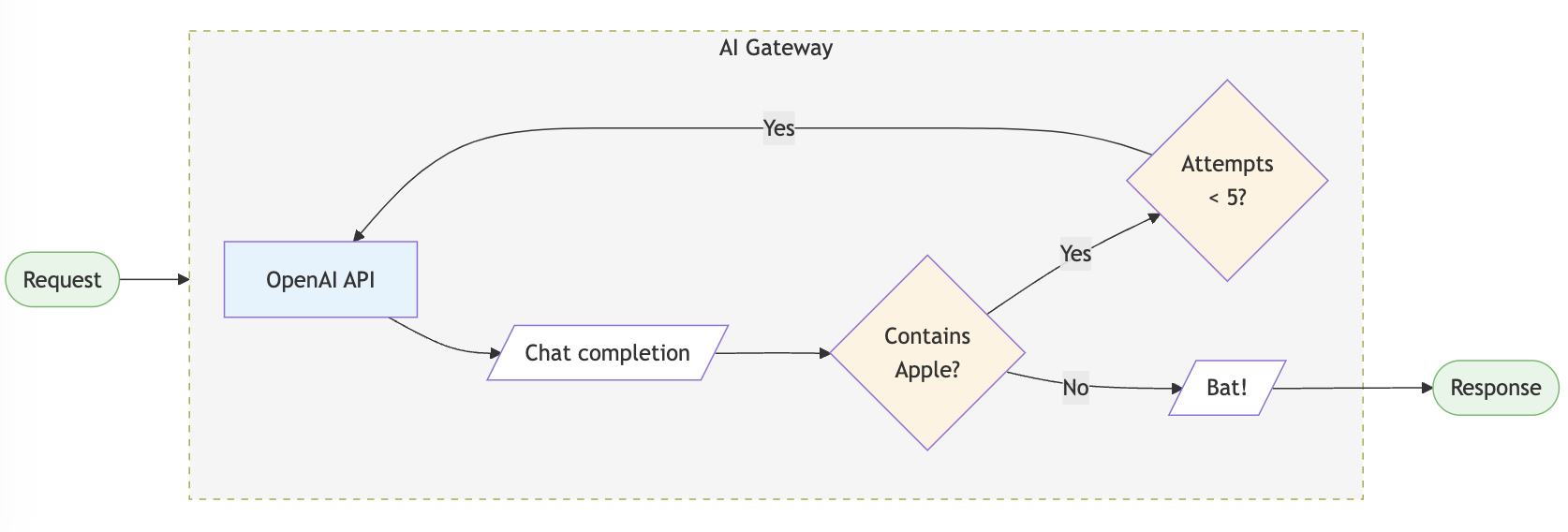
### Add Output Guardrails
Validate and filter LLM responses:
```python theme={null}
config = {
"retry": {"attempts": 5},
"output_guardrails": [{
"default.contains": {
"operator": "none",
"words": ["Apple"]
},
"deny": True
}]
}
client = client.with_options(config=config)
response = client.chat.completions.create(
model="gpt-4o-mini",
messages=[{"role": "user", "content": "Reply randomly with Apple or Bat"}]
)
# This will always respond with "Bat" since the guardrail denies "Apple"
```
## Step 3: Add Routing & Guardrails
Now let's add some production-ready features. Configs allow you to create routing rules, add reliability, and setup guardrails.
### Add Automatic Retries
```python theme={null}
config = {
"retry": {
"attempts": 5
}
}
# Attach the config to the client
client = client.with_options(config=config)
response = client.chat.completions.create(
model="gpt-4o-mini",
messages=[{"role": "user", "content": "Hello!"}]
)
```
Failed requests will automatically retry up to 5 times with exponential backoff.
### Add Output Guardrails
Validate and filter LLM responses:
```python theme={null}
config = {
"retry": {"attempts": 5},
"output_guardrails": [{
"default.contains": {
"operator": "none",
"words": ["Apple"]
},
"deny": True
}]
}
client = client.with_options(config=config)
response = client.chat.completions.create(
model="gpt-4o-mini",
messages=[{"role": "user", "content": "Reply randomly with Apple or Bat"}]
)
# This will always respond with "Bat" since the guardrail denies "Apple"
```
 ### Setup Fallback Routing
Automatically failover to a backup provider:
```python theme={null}
config = {
"strategy": {
"mode": "fallback"
},
"targets": [
{
"provider": "openai",
"api_key": "sk-***"
},
{
"provider": "anthropic",
"api_key": "sk-ant-***"
}
]
}
client = client.with_options(config=config)
# If OpenAI fails, the request automatically goes to Anthropic
response = client.chat.completions.create(
model="gpt-4o-mini",
messages=[{"role": "user", "content": "Hello!"}]
)
```
Make sure both providers support the model you're requesting, or specify different models in the config.
### Load Balancing
Distribute requests across multiple API keys:
```python theme={null}
config = {
"strategy": {
"mode": "loadbalance"
},
"targets": [
{
"provider": "openai",
"api_key": "sk-key1-***",
"weight": 0.7
},
{
"provider": "openai",
"api_key": "sk-key2-***",
"weight": 0.3
}
]
}
client = client.with_options(config=config)
# 70% of requests use key1, 30% use key2
```
## Supported Libraries & Frameworks
The AI Gateway works with all major libraries and frameworks:
Use the Portkey Python SDK
Use the Portkey JS/TS SDK
Use native OpenAI SDKs
Integrate with LangChain
Integrate with LlamaIndex
Use any HTTP client
## What's Next?
You're now ready to explore more advanced features:
Learn about all available config options for routing and guardrails
See the full list of 250+ supported LLMs
Deploy to production with Docker, Kubernetes, or cloud providers
Explore caching, streaming, multi-modal, and more
## Need Help?
Get help from the community
Browse cookbook examples
**Enterprise Users**: Looking for advanced security, governance, and compliance features? Check out the [enterprise version](/deployment/enterprise).
### Setup Fallback Routing
Automatically failover to a backup provider:
```python theme={null}
config = {
"strategy": {
"mode": "fallback"
},
"targets": [
{
"provider": "openai",
"api_key": "sk-***"
},
{
"provider": "anthropic",
"api_key": "sk-ant-***"
}
]
}
client = client.with_options(config=config)
# If OpenAI fails, the request automatically goes to Anthropic
response = client.chat.completions.create(
model="gpt-4o-mini",
messages=[{"role": "user", "content": "Hello!"}]
)
```
Make sure both providers support the model you're requesting, or specify different models in the config.
### Load Balancing
Distribute requests across multiple API keys:
```python theme={null}
config = {
"strategy": {
"mode": "loadbalance"
},
"targets": [
{
"provider": "openai",
"api_key": "sk-key1-***",
"weight": 0.7
},
{
"provider": "openai",
"api_key": "sk-key2-***",
"weight": 0.3
}
]
}
client = client.with_options(config=config)
# 70% of requests use key1, 30% use key2
```
## Supported Libraries & Frameworks
The AI Gateway works with all major libraries and frameworks:
Use the Portkey Python SDK
Use the Portkey JS/TS SDK
Use native OpenAI SDKs
Integrate with LangChain
Integrate with LlamaIndex
Use any HTTP client
## What's Next?
You're now ready to explore more advanced features:
Learn about all available config options for routing and guardrails
See the full list of 250+ supported LLMs
Deploy to production with Docker, Kubernetes, or cloud providers
Explore caching, streaming, multi-modal, and more
## Need Help?
Get help from the community
Browse cookbook examples
**Enterprise Users**: Looking for advanced security, governance, and compliance features? Check out the [enterprise version](/deployment/enterprise).